Ready to start copy trading on MT5? This guide shows the full setup process: verify your subscription, add master/slave accounts, install the EA, configure MT5 permissions, and confirm your license is active.
Open Copy Trading Tool
What you’ll learn
- The exact steps to configure MT5 for LeTechs Copy Trading
- How to add master and slave accounts correctly
- Where to install the EA file in MT5
- How to confirm the EA is connected and active
1️⃣ Confirm Your Subscription
✅ Subscription required
Before setup, make sure your copy trading subscription is active. Your account limits (master/slave count) are shown on the MT5 Accounts page.
If your limit is reached, upgrade or purchase add-ons before adding more accounts.
If your limit is reached, upgrade or purchase add-ons before adding more accounts.
2️⃣ Add Your MT5 Master Account
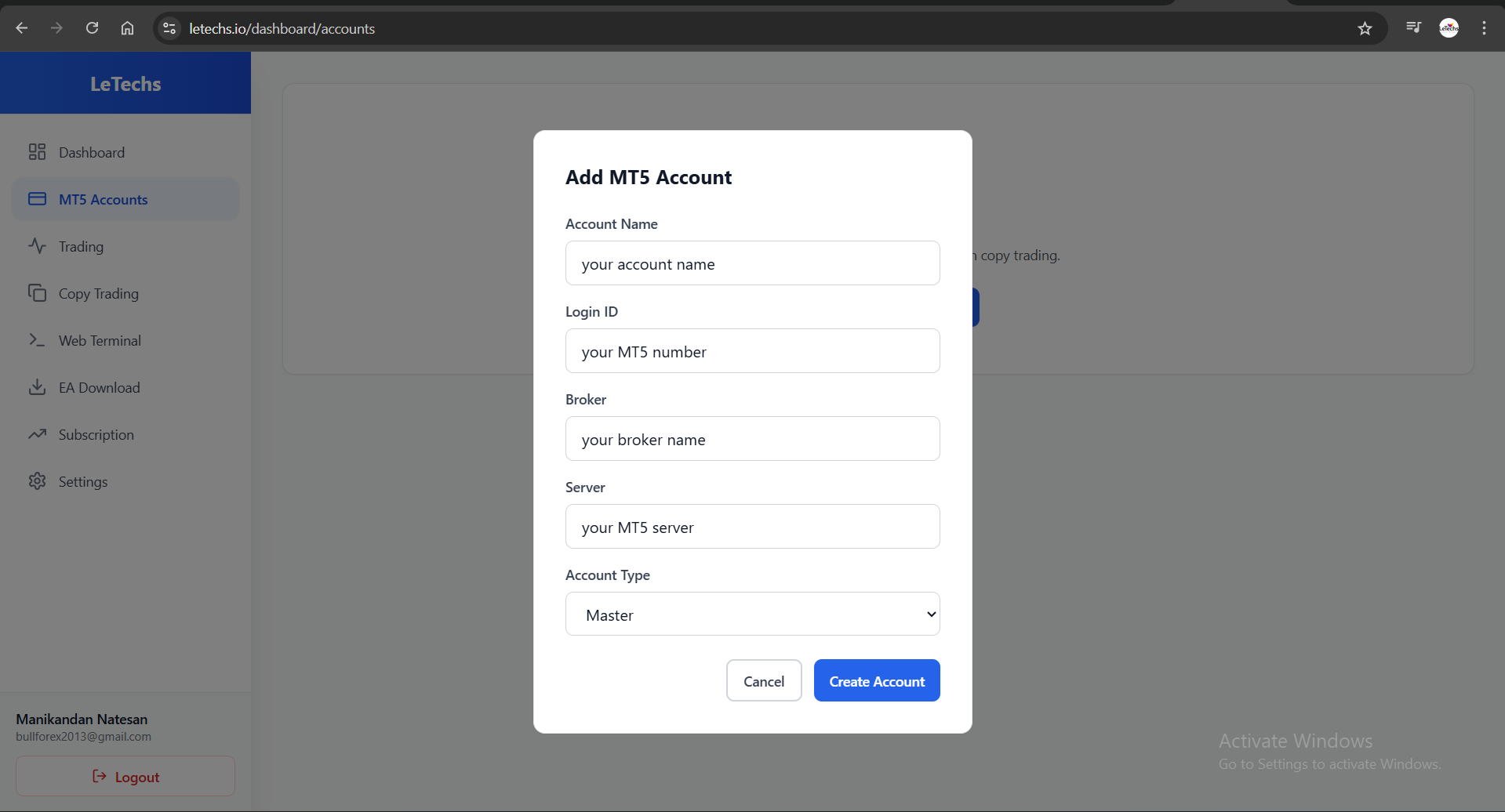
Step 1: Add master account
Open the MT5 Accounts page and add your Master account details (account name, login, broker, server).
3️⃣ Add Your MT5 Slave Accounts
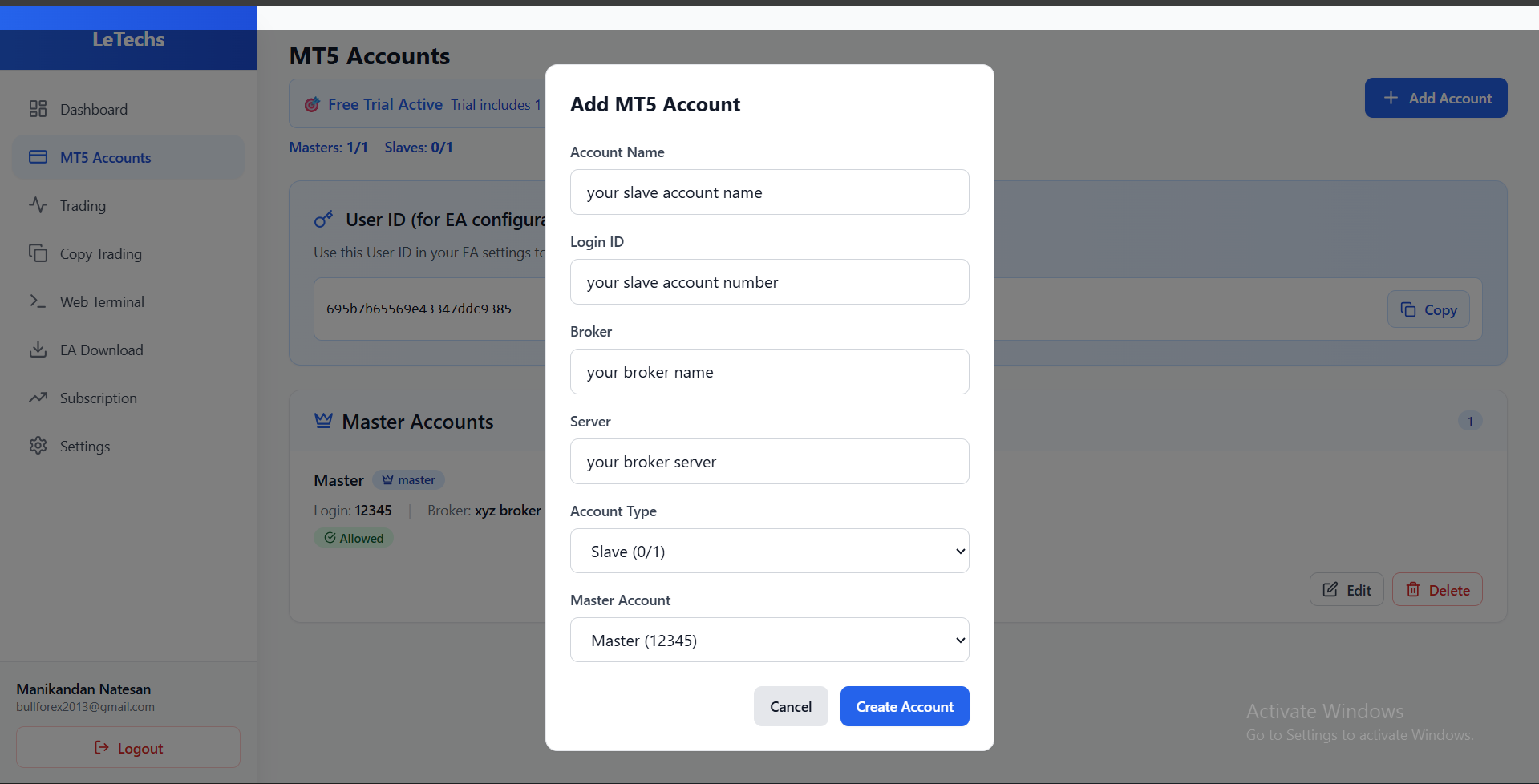
Step 2: Add slave accounts
Add your Slave accounts one by one. Each slave must be linked to a master account in the dropdown.
Pro Tip
Start with one slave account to test, then add the rest after confirming trades copy correctly.
Pro Tip
Start with one slave account to test, then add the rest after confirming trades copy correctly.
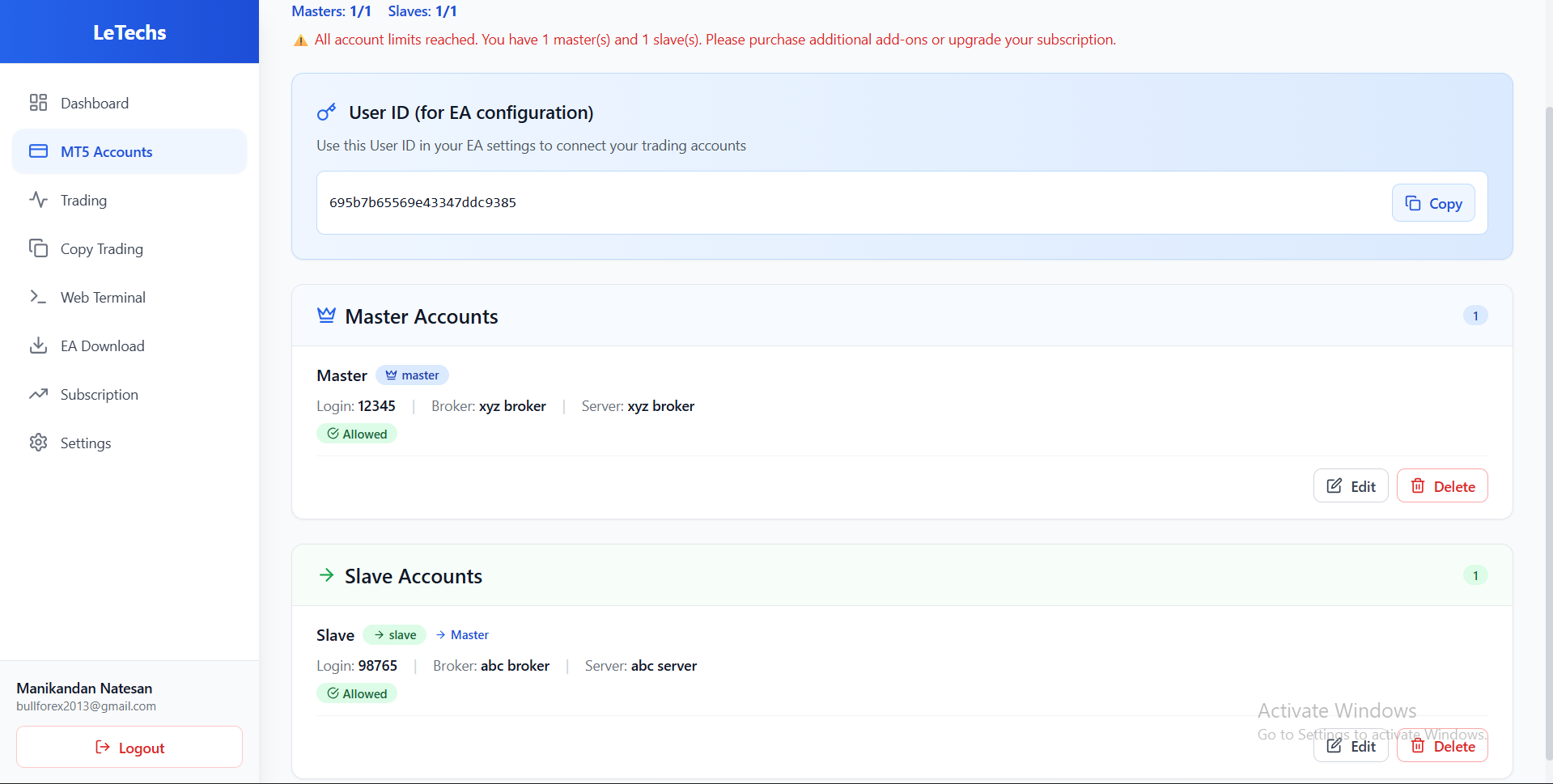
Step 3: Confirm account list
Verify your Master and Slave accounts appear in the MT5 Accounts list.
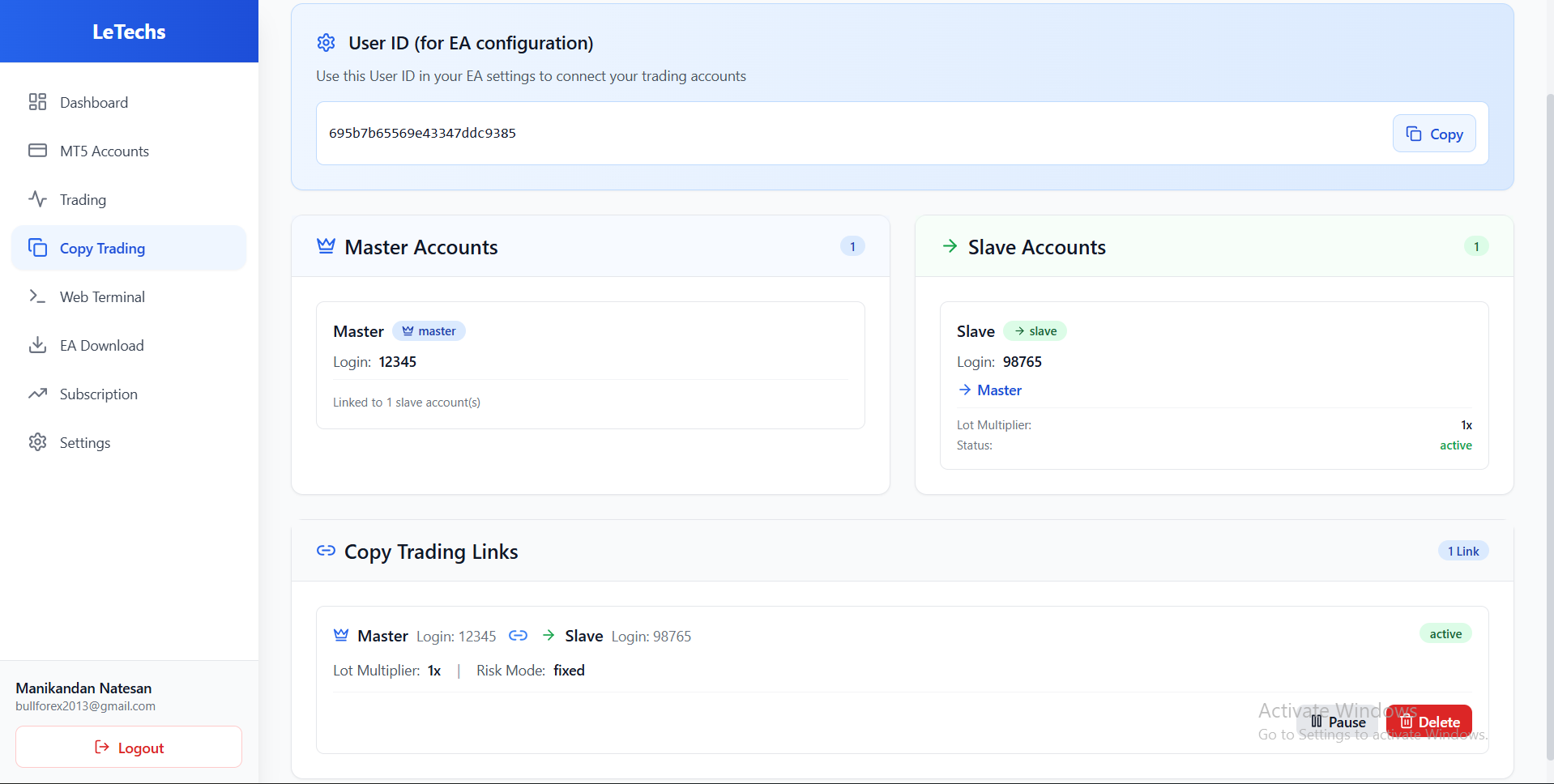
Step 4: Verify copy trading link
Open Copy Trading Links and confirm the master is linked to the slave. If needed, use Delete to remove an incorrect link.
4️⃣ Download and Install the EA File
Step 5: Download the EA
Go to the EA Download page and download your EA file.
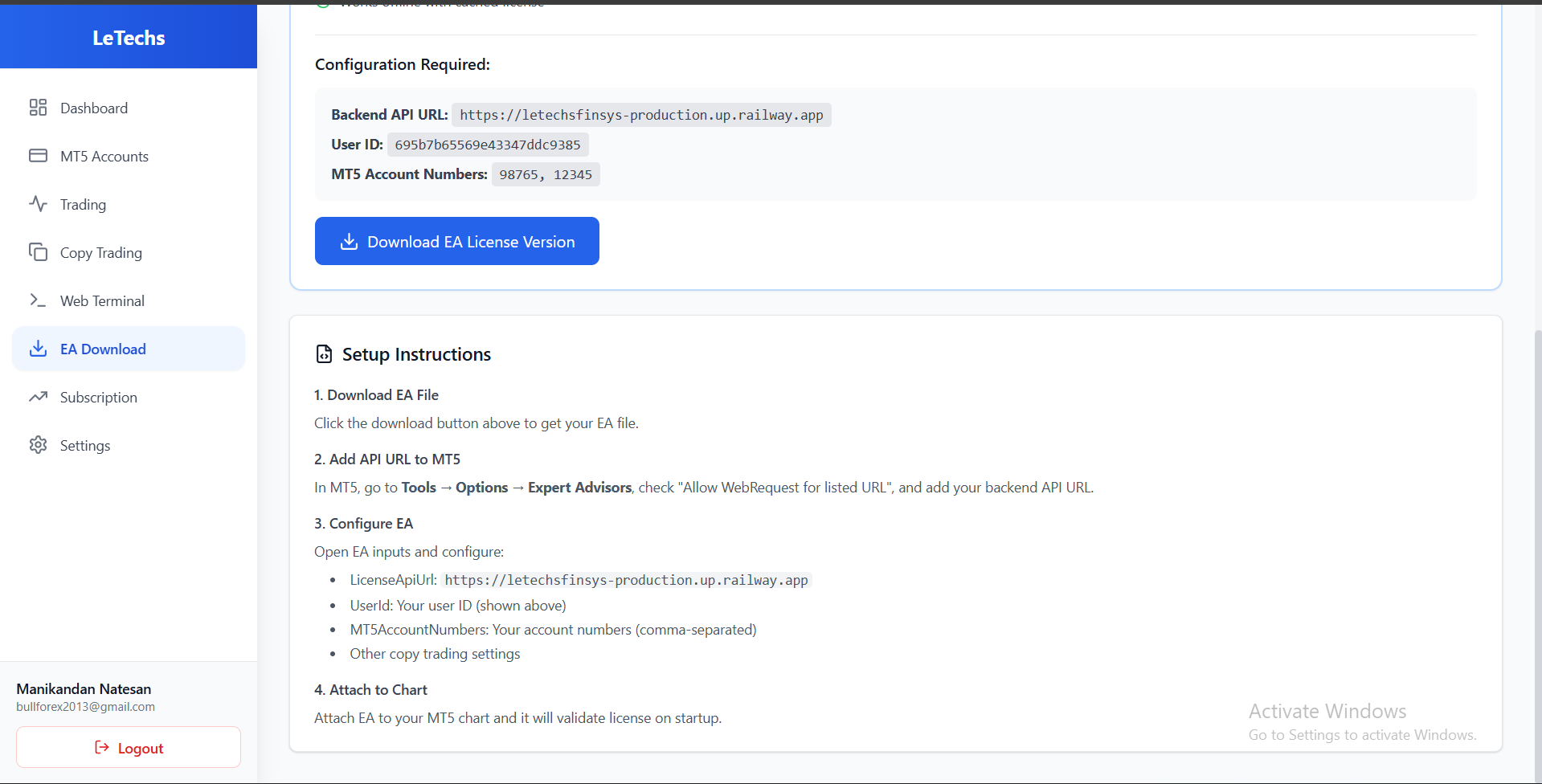
Step 6: Install in MT5
In MT5, open File → Open Data Folder. Then place the EA file in:
MQL5 → Experts
5️⃣ Enable WebRequest and Algo Trading
Step 7: Configure MT5 permissions
Open Tools → Options → Expert Advisors and:
- Enable Allow algorithmic trading
- Enable Allow WebRequest for listed URL
- Add the Backend API URL shown in your dashboard
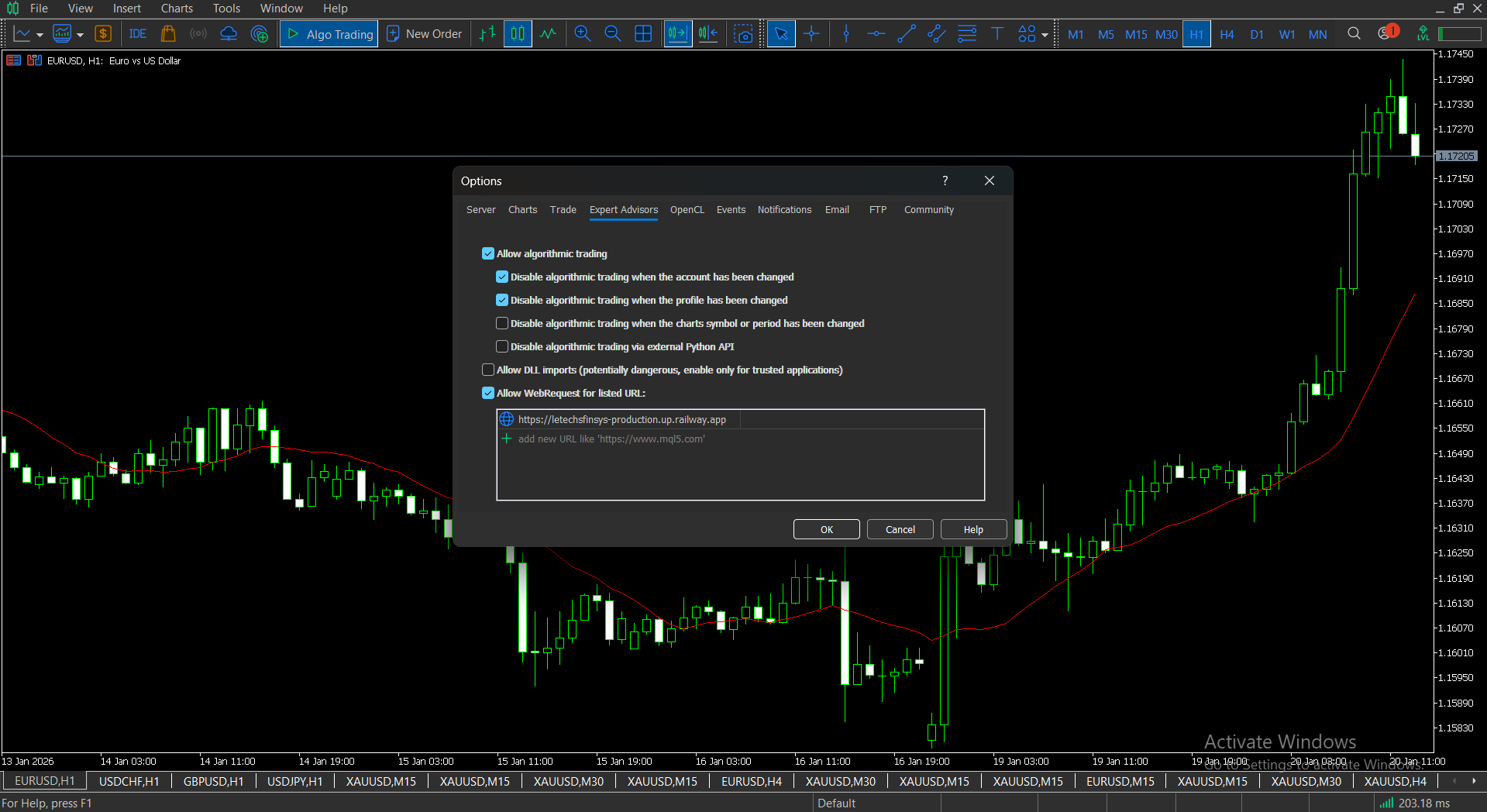
This step is required for license validation and trade syncing.
This step is required for license validation and trade syncing.
6️⃣ Attach EA and Enter Your User ID
Step 8: Attach EA to the chart
Drag the EA from Navigator → Expert Advisors onto your chart, then set the User ID (shown on your dashboard).
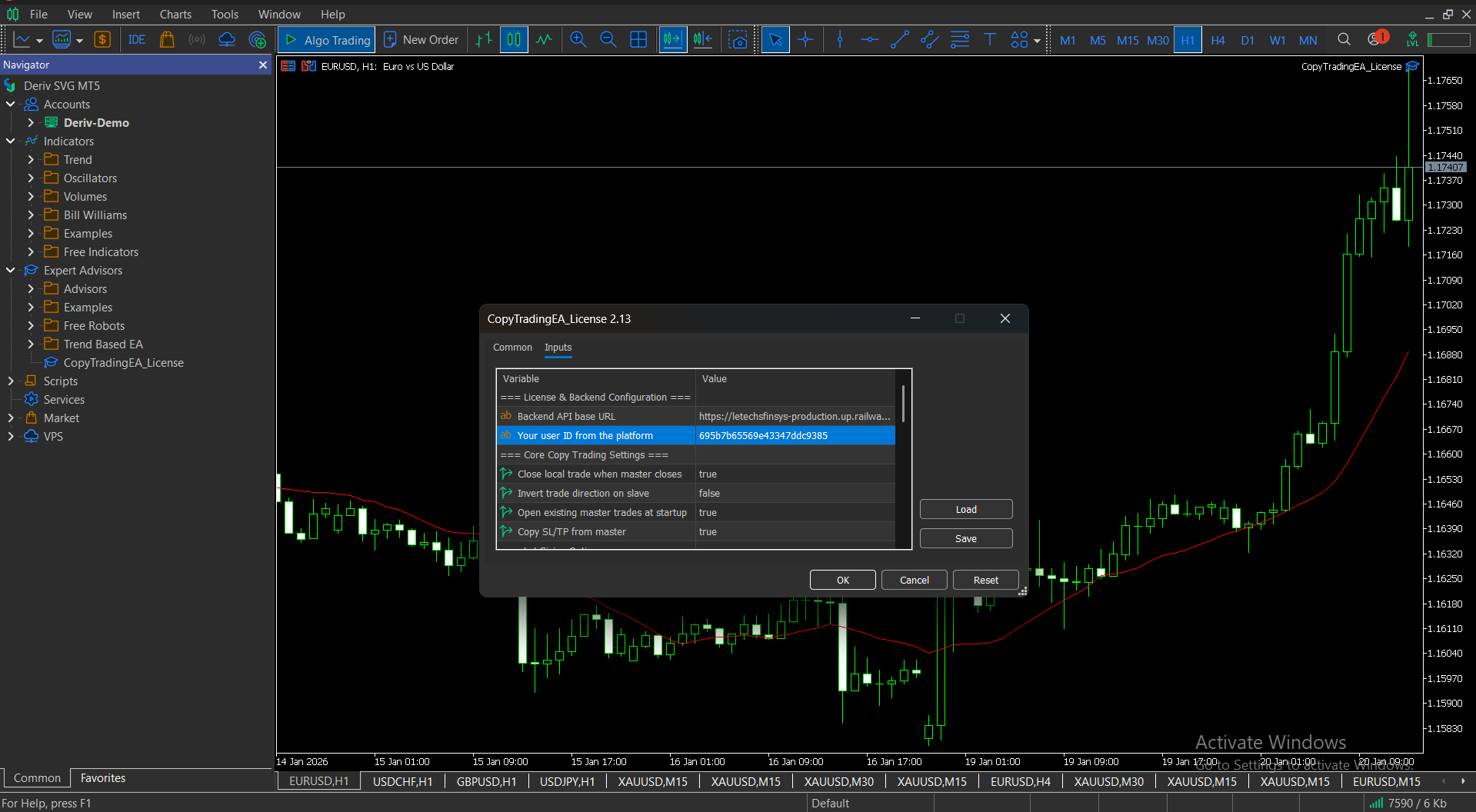
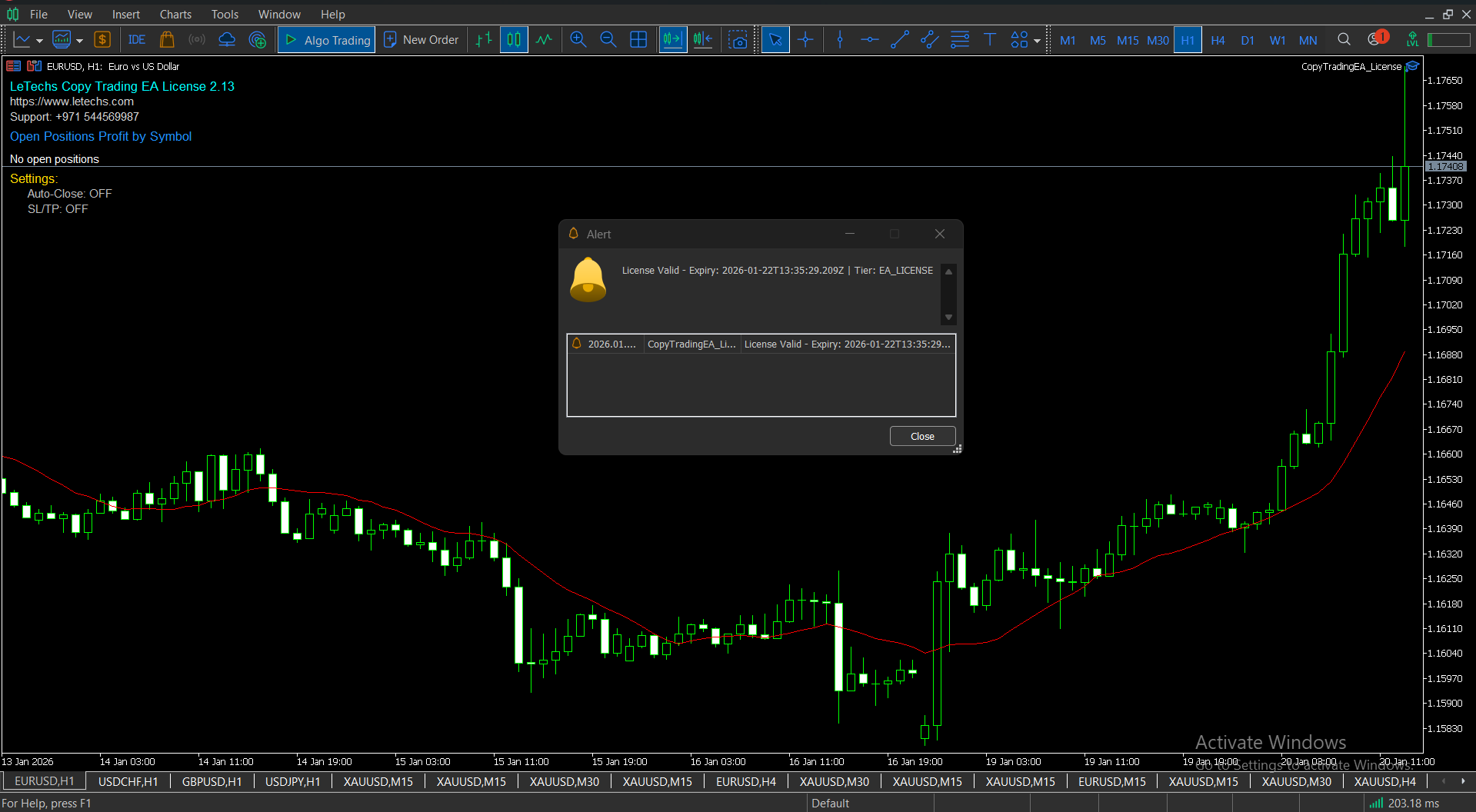
Step 9: Confirm EA status
After attaching, verify:
- EA name appears at the top-right of the chart
- EA info text appears at the top-left
- A popup alert confirms your license is valid and shows expiry
7️⃣ Repeat for All Terminals and Test
Step 10: Repeat setup
Repeat the same setup on each MT5 terminal you plan to use.
Step 11: Test trade copy
Place a test trade on your Master account and confirm it appears on the Slave account(s) based on your settings.
8️⃣ Common Issues and Fixes
✅ Quick fixes
- EA not visible? Restart MT5 after adding the EA file.
- No license popup? Check WebRequest URL and internet connection.
- Trades not copying? Confirm master/slave link and lot multiplier settings.
Need Help With Setup?
If you want guided support, our team can help you complete the copy trading setup.
Get Copy Trading Setup Help
Submit a request and we’ll guide you through each step.
Get Setup Support
Summary
Key Principles (0/4)
Quiz
Quiz
Where do you place the EA file in MT5?
Answer:
In MT5, open Data Folder and place it under MQL5 → Experts.
Which setting must be enabled for license validation?
Answer:
Enable Allow WebRequest for listed URL and add the Backend API URL.
How do you confirm the EA is active?
Answer:
You should see the EA name on the chart and a popup showing your license status.
🚀 LeTechs Insight
Copy trading works best when your setup is clean and tested. Start with one slave, confirm the sync, then scale.
Next Lesson: Managing copy trading risk settings
Ready to continue?
Mark this lesson as complete to track your progress.